Search Knowledge Base
REDDCRYPT has been designed as end-to-end encryption so that only the sender(s) and the recipient(s) can read the emails. Thanks to the zero-knowledge technology developed, we as the provider also have no way of reading our customers’ emails. This is because the user’s password is never transmitted to us (see technology for details).
However, this plus in data protection and security also has a “disadvantage”: if you forget your password, there is no way for us to recover it.
The Master Key was therefore introduced for customers with REDDCRYPT Business. If this is activated, the user accounts are additionally secured with the master key. This has the advantage that the user can generate a new password without losing their previous emails.
We explain how this works below.
Create master key
You can find
Settings -> My Organization -> Master Keys
generate a master key by clicking on the “Create a new key” button.

When you create the master key, you will be asked for a password. Please note that we cannot recover this password either, so please keep it in a safe place such as a password safe.

The creation of the master key is now complete.
Recognize whether members are secured with the master key
As soon as the members of your organization log in to REDDCRYPT for the next time, these accounts are secured with the master key. Once this has been done, the passwords can be changed using the master key. In addition, the master key can be used to decrypt emails from employees who have left the organization(see instructions).
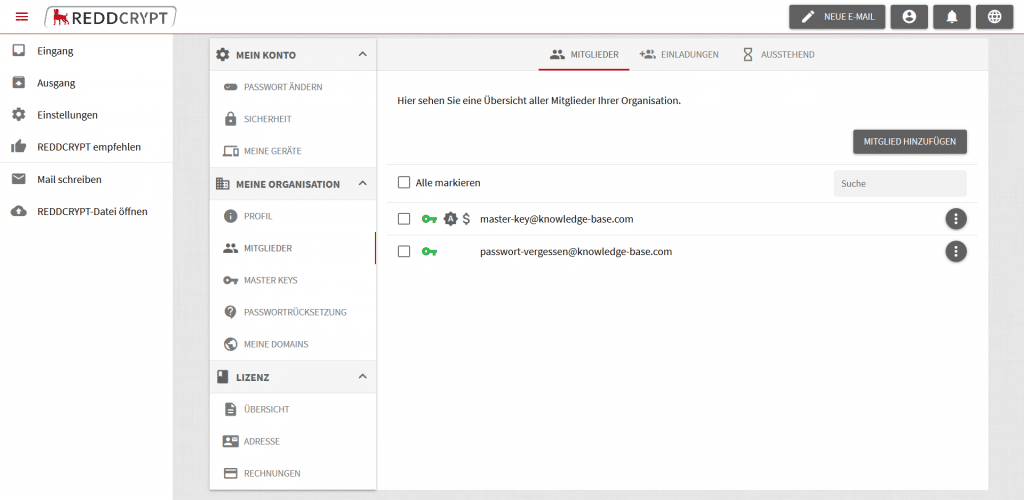
In the overview of your members, you can see which member has already been secured with the master key:
- If the key is is greenthe account is secured with the master key.
- If the key is redthe account is not secured with the master key.
- If the key is orangethe account is secured with an archived master key.
Request password change by the user
If a user has forgotten their password, they can click on“Forgotten password?” at https://app.reddcrypt.com. There they must first enter the email address of their REDDCRYPT account.

To make sure that this is really the owner of the e-mail address, we send this user an email containing a link.

After the user has clicked on the link and confirmed that this is their own account, they can define a new password.

The new password has now been saved temporarily and the administrator has been informed by email.

To change the password, the user’s private key must be decrypted – from a technical point of view. Only then can the new password be applied and the private key re-encrypted. This process is implemented via the master key.
Confirm password change with the master key
The administrator of the organization can be found at
Settings -> My organization -> Password reset
an overview of all open user requests. These requests can be accepted or rejected. If they are rejected, the old password remains in place.
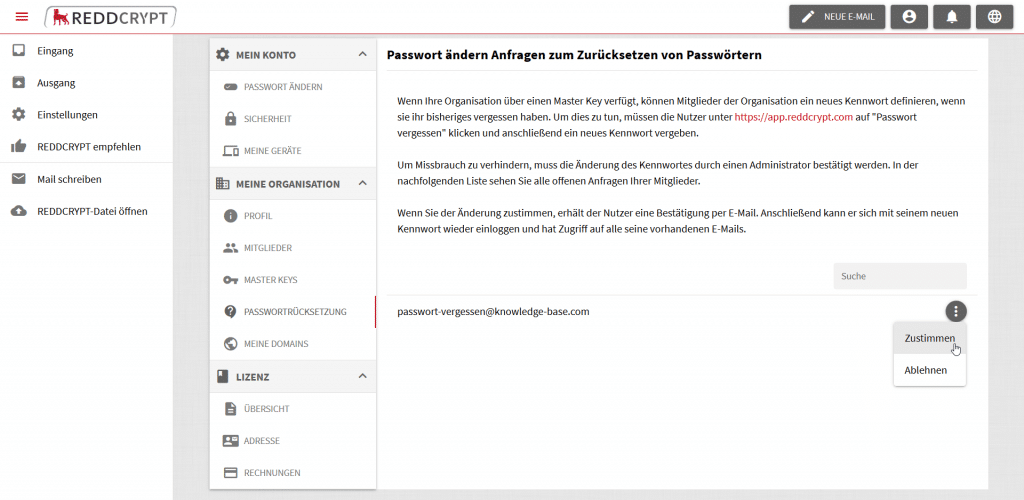
After clicking on Agree, you will be asked for the master key password.

If the password is entered correctly, the master key is decrypted. The decrypted master key is then used to decrypt the user’s private key and set the new password.
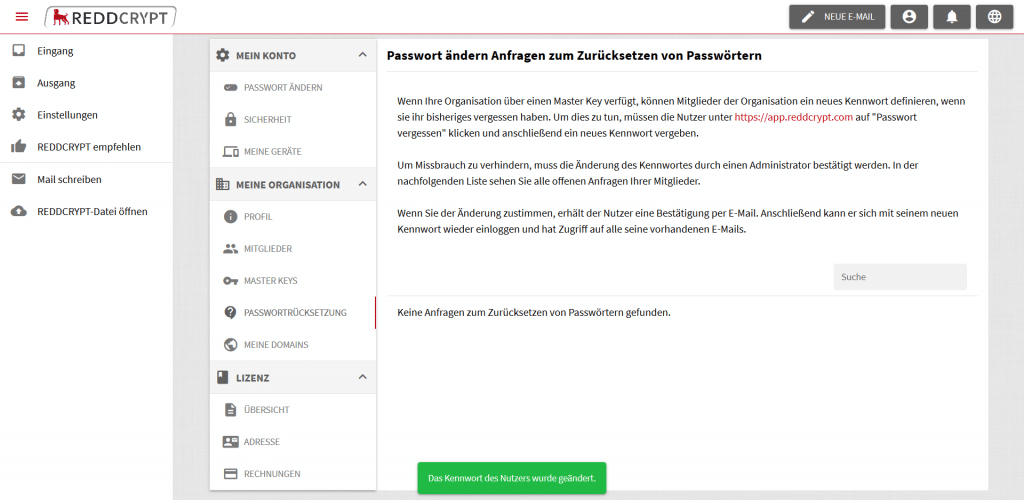
Finally, the user receives an email informing them that they can now log in with their new password.

