Search Knowledge Base
Anyone using email encryption wants to protect sensitive content from being accessed by third parties – and this is exactly what you achieve with consistent end-to-end encryption with REDDCRYPT. This means that only the sender and recipient of the email are actually able to read it.
In view of the fact that the data worthy of protection is often personnel data, pay slips, monthly statements or contracts, it may still be necessary to have access to this data even if the employee is no longer working for the company.
For this reason, it is possible to create a master key. This enables authorized persons to decrypt emails from the company.
To create the master key
The master key is part of REDDCRYPT Business. You can use it under
Settings -> My Organization -> Master Keys
by clicking on the “Create a new key” button.

When you create the Master Key, you will be asked for a password. Please note that we cannot recover this password and therefore keep it in a safe place such as a password safe. However, if you forget the password, you can create a new Master Key (see below).

The creation of the master key is now complete.
Recognize whether members are secured with the master key
As soon as the members of your organization log in to REDDCRYPT for the next time, these accounts will be secured with the master key. In the overview of your members, you can see which member has already been secured with the master key:
- If the key is is greenthe account is secured with the master key.
- If the key is redthe account is not secured with the master key.
- If the key is orangethe account is secured with an archived master key (see below).

Decrypt encrypted email with the master key
To decrypt an email, you need the reddcrypt.securemail file. This is always attached to the REDDCRYPT transport mails. You can find these transport emails in your former employee’s mailbox or – if available – in your email archive (if you are not yet using archiving, we recommend our email archiving REDDOXX MailDepot).
Another option is to use the master key to reset the former employee’s password and then log in to their account using their email address. The prerequisite for this is that you have access to the former employee’s mailbox. We have documented how to reset passwords with the master key here.
If you have the reddcrypt.securemail file, open it under
Settings -> My organization -> Master Keys -> Decrypt email
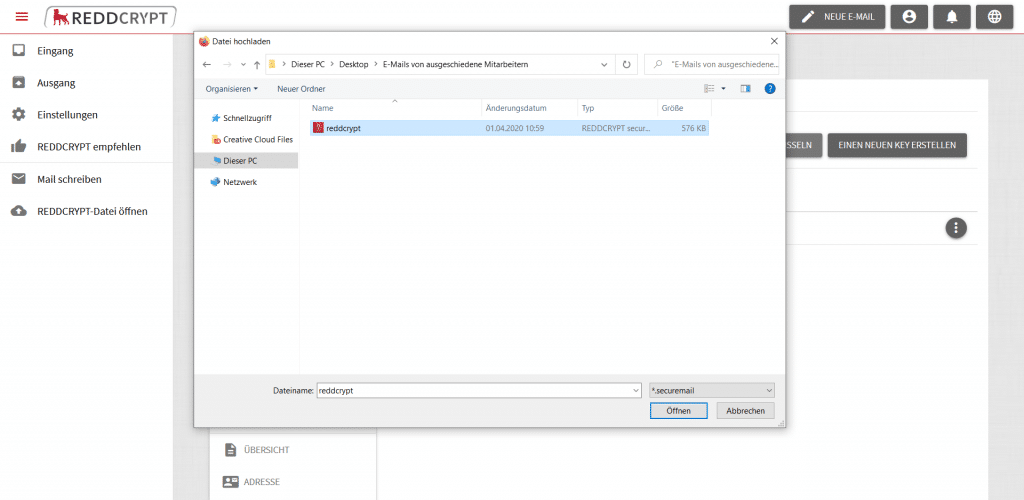
To be able to read the email, you must now enter the password for the master key.

If the password entered was correct, the former employee’s private key is now automatically decrypted and the email becomes readable.

Create a new master key and archive the old one
As an administrator, you can create a new master key at any time; the previous master key is automatically archived. This is necessary, for example, if you have forgotten the password of the previous master key. The procedure for creating the new master key is identical to the first one.
The newly created master key is now used to secure your employees. This is done the next time the employees log in to REDDCRYPT (also applies if the users use the Outlook plugin). All accounts that no longer log in remain protected with the now archived master key.
The previous master key remains as an archived key in case you remember the password.


