Outlook Plugin and REDDCRYPT Desktop: How to encrypt from Outlook in the future

We have been working intensively on new user interfaces in recent months and have released a new application, REDDCRYPT Desktop, to replace the Windows app.
At the same time, we have also completely revised the Outlook plugin. In future, users of the Outlook plugin will have to install both applications.
What sounds complicated at first is not at all in the background; you can still carry out the entire encryption and decryption process in Outlook, as the only thing that changes for you is the appearance.
Why the change?
The previous REDDCRYPT Outlook plugin was deeply integrated into the Microsoft Outlook technology.
Such deep integration inevitably means that you are very dependent on the respective provider.
For example, Office updates can lead to individual functions not working as expected or errors occurring that were not there before.
This is primarily due to the fact that Microsoft, as a small provider, does not provide us with any information about upcoming changes in advance and we only become aware of them once the error has already occurred.
For this reason, we have decided to change the integration without any disadvantages in terms of user-friendliness.
You even have another advantage that you didn’t have before.
We’ll go into this at the end!
How encryption works with the new Outlook plugin
Nothing has changed visually in terms of operation.
You still have the encryption button in Outlook or you can be asked whether you want to encrypt the email before sending it. 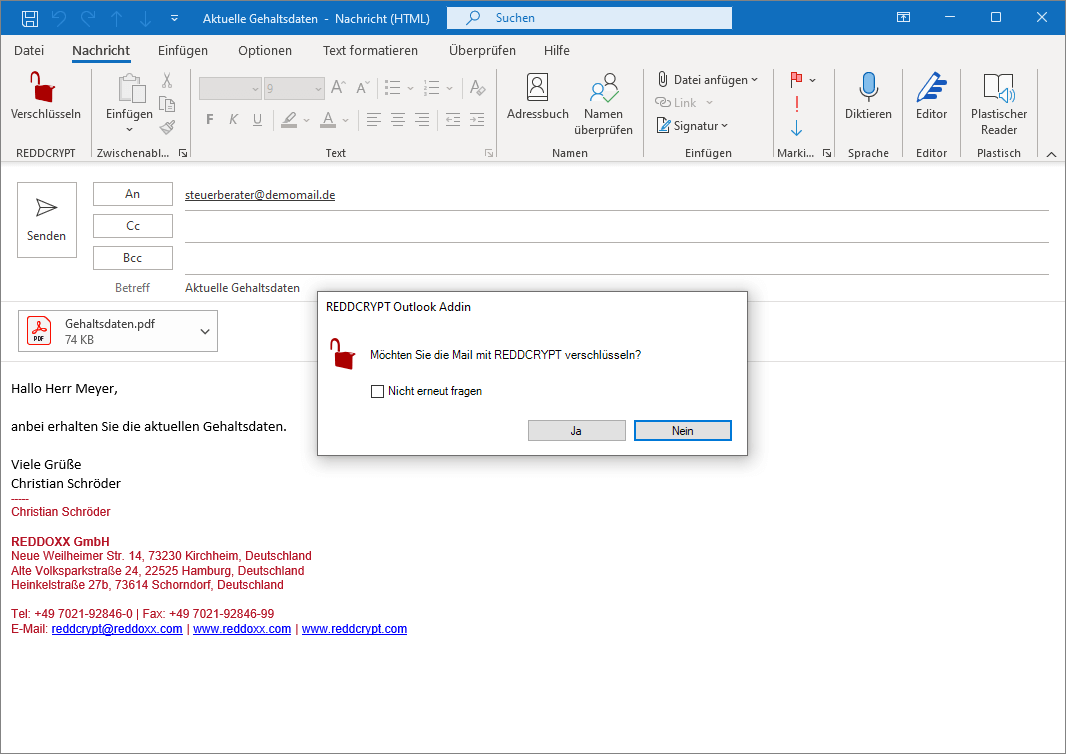 By clicking on “Yes”, the change will now take effect.
Previously, a dialog opened that was permanently integrated in Outlook.
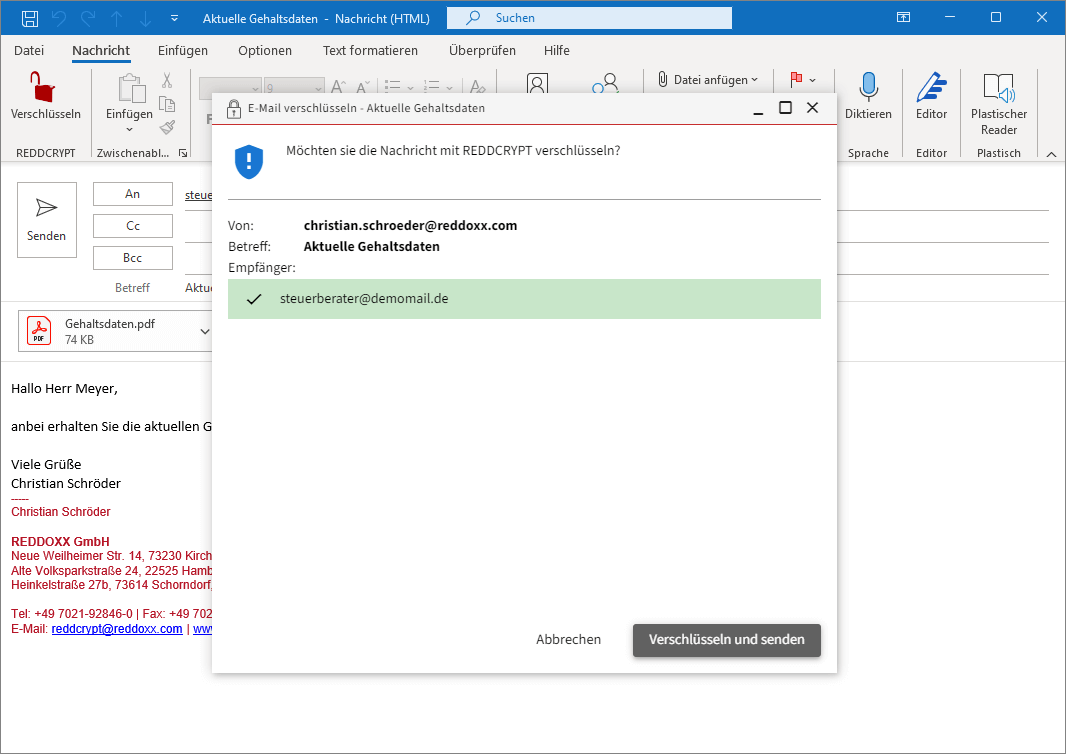
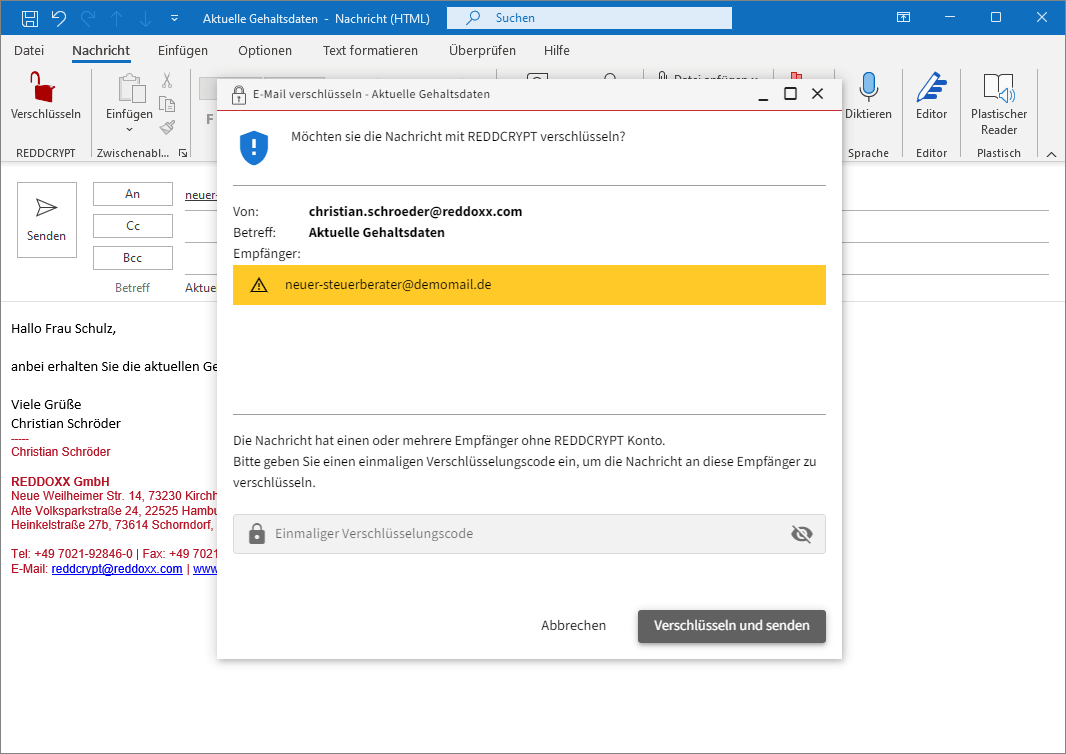
In future, this dialog will come from REDDCRYPT Desktop.
As you can see in the screenshots below, the only change for existing users is the appearance.
In the background, however, this change makes us much less dependent on future Microsoft updates because the entire encryption and decryption logic takes place in REDDCRYPT Desktop and not in Outlook.
Recipient has a REDDCRYPT account
Recipient does not have a REDDCRYPT account
REDDCRYPT Desktop – All emails always at your fingertips
REDDCRYPT Desktop looks like another e-mail client.
If you can no longer find an email you have received or sent in Outlook, you can simply look it up in REDDCRYPT Desktop.
You will find all emails in your inbox and outbox there, even if you have already deleted the email in your Outlook. 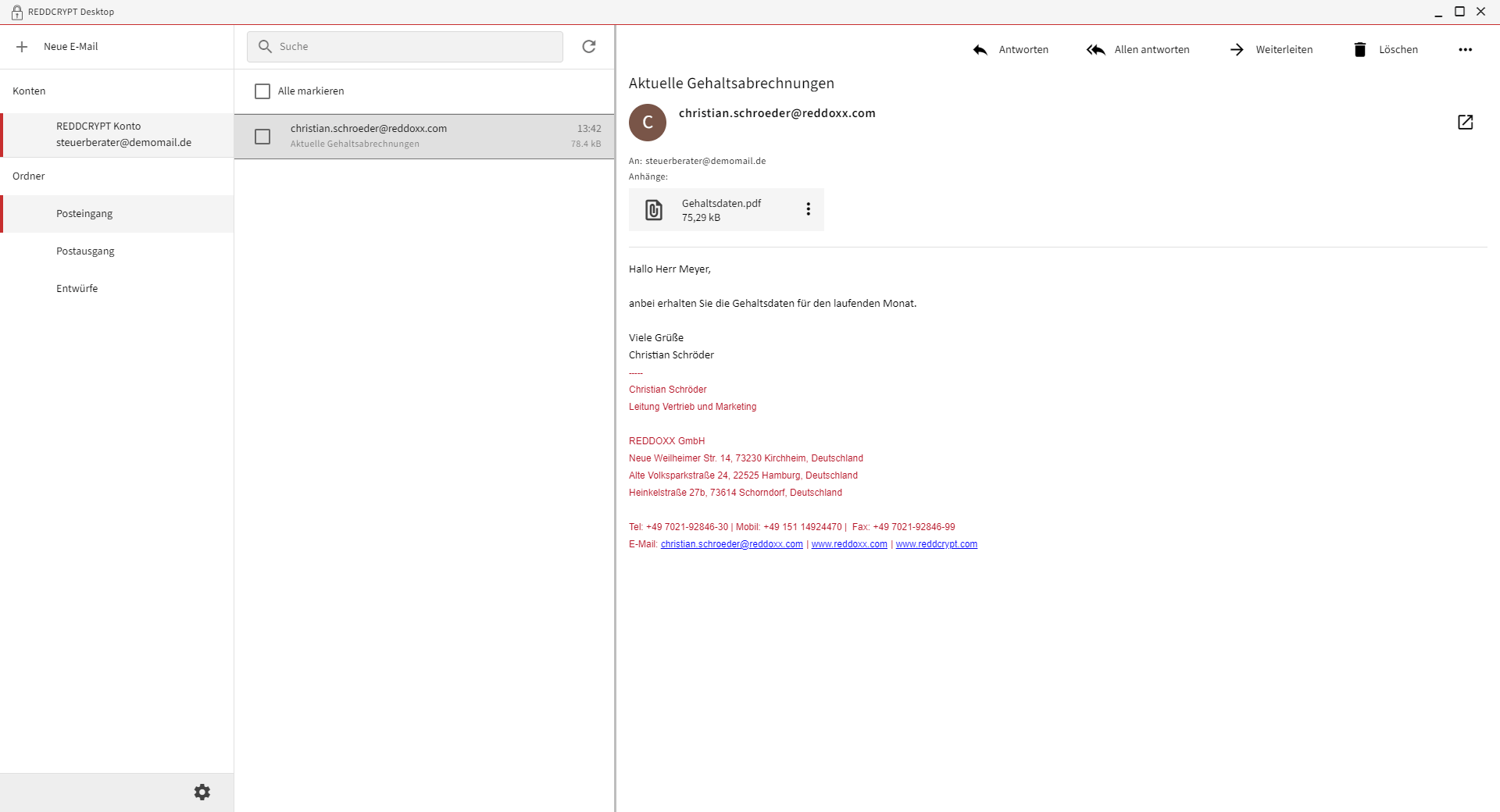 You can find the latest version of the Outlook plugin and REDDCRYPT Desktop in the app overview.
If you have installed the previous Outlook plugin or the Windows app, you can download the update here.

