Search Knowledge Base
The Windows app adds REDDCRYPT technology to your Microsoft Windows operating system.
Installation
The Windows app is installed using the corresponding MSI file. The following steps are necessary for installation:
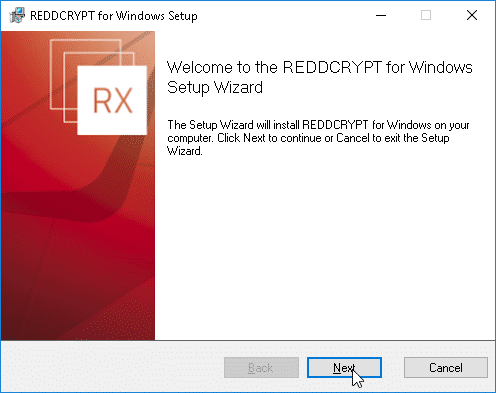
Start the installation and confirm with Next
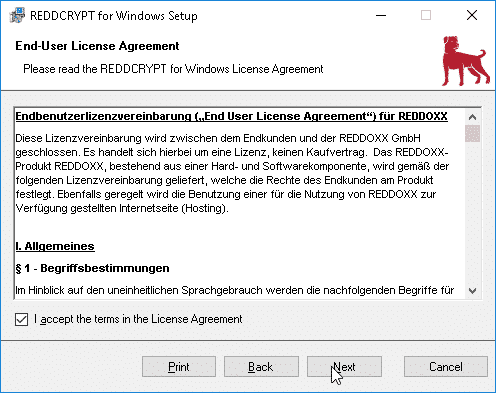
Confirm the license conditions
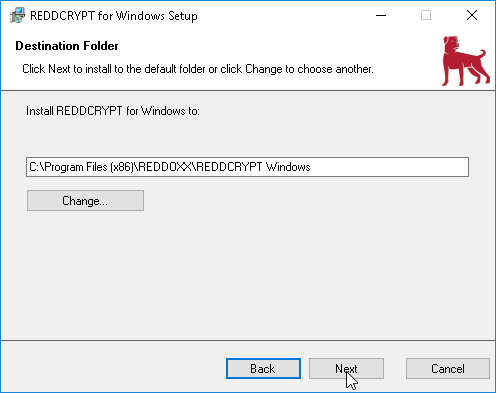
Select the installation folder and continue with “Next” (depending on the existing UAC settings, additional confirmation may be required)
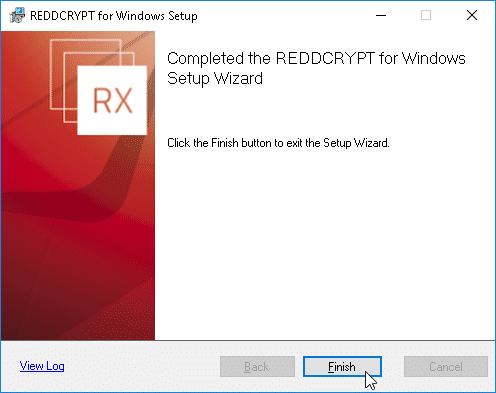
Complete the installation with “Finish”.
Registration / Login
Start the REDDCRYPT for Windows application(Reddcrypt.Windows.exe) after it has been installed. If no account has been created or added yet, you will be suggested to set up an account.

Click Yes and select whether you want to create a new REDDCRYPT account or add an existing account.
Create new account
Enter the email address for which you want to configure REDDCRYPT.

A registration pin for verifying the address will be sent to the email address you entered. Enter this PIN in the setup window.

Enter your personal password.

Complete the setup.

Use existing account
Enter both the email address and the password configured for REDDCRYPT and click on “Next”

Complete the setup with “Finish”

Operation
The following functions are available in the Windows app:
- New (to write a new email)
- Answers
- All answers
- Forward
- Reload (to refresh the view)
- Delete (to delete the selected email)
- Settings

New
You are writing a new encrypted email.
The recipient field checks whether the recipient already has a REDDCRYPT account. If this is the case, the email address is marked with a green tick:

If the recipient does not have a REDDCRYPT account, the email address will be marked with a yellow exclamation mark. After clicking on Send, select a password for the encryption of this email and inform the recipient of this (e.g. via telephone):


Answers
By clicking on “Reply”, you have the option of replying to an email you have received. The sender is automatically entered as the recipient of the email. You can of course add further recipients.
Reply to Allen
By clicking on “Reply to all”, you have the option of replying to a received email. All email addresses that were entered as sender and recipient in the email are automatically entered as recipients of the reply.
Forward
By clicking on “Forward”, you have the option of forwarding the email to any recipient.
Reload
By clicking on “Reload”, the Windows app checks whether you have received any new emails.
Delete
You can delete the selected email by clicking on “Delete”. You can hold down CTRL on the keyboard and select several emails with the left mouse button. Click on “Delete” to delete all selected emails.
Settings
In the “REDDCRYPT accounts” tab in the settings, you can add new accounts (and select whether you want to create a new account or use an existing account) or delete existing accounts (via right-click => Delete).

In the Update tab, you can switch the update channel between Beta and Stable, search for updates and select whether updates should be searched for when the program is started.

In the Proxy tab, you can define whether emails should be sent via a proxy. If yes, you can decide whether the settings stored in your Windows should be used or whether you want to configure the proxy separately.


